Tuesday, August 5, 2014

Config time vps

yum -y install rdate
mv /etc/localtime /etc/localtime.old
ln -sf /usr/share/zoneinfo/Asia/Ho_Chi_Minh /etc/localtime
rdate -s rdate.cpanel.net
Open port 37 in csf


Tuesday, July 22, 2014

Hướng dẫn biên dịch và cấu hình NginX

Cài trình biên dịch và các gói phần mềm cần thiết để phục vụ quá trình biên dịch
sudo apt-get install build-essential libssl-dev libpcre3 libpcre3-dev \
libxml2-dev libxslt1-dev libgd2-xpm-dev libgeoip-dev
 Tải về mã nguồn của NginX (bản ổn định mới nhất tại thời điểm viết bài này có phiên bản 1.4.2)
sudo su
cd /usr/src
wget http://nginx.org/download/nginx-1.4.2.tar.gz
 Giải nén và chuyển đến thư mục vừa giải nén
tar xvfz nginx-1.4.2.tar.gz
cd nginx-1.4.2.tar.gz
 Cấu hình các thông số biên dịch để chuẩn bị cho việc biên dịch bằng lệnh configure như sau: (lưu ý, để biết các option của lệnh này, bạn có thể thực thi command ./configure --help)
./configure \
--prefix=/usr/local/nginx \
--conf-path=/etc/nginx/nginx.conf \
--error-log-path=/var/log/nginx/error.log \
--http-client-body-temp-path=/var/lib/nginx/body \
--http-fastcgi-temp-path=/var/lib/nginx/fastcgi \
--http-log-path=/var/log/nginx/access.log \
--http-proxy-temp-path=/var/lib/nginx/proxy \
--http-scgi-temp-path=/var/lib/nginx/scgi \
--http-uwsgi-temp-path=/var/lib/nginx/uwsgi \
--lock-path=/var/lock/nginx.lock \
--pid-path=/var/run/nginx.pid \
--with-pcre-jit \
--with-debug \
--with-http_addition_module \
--with-http_dav_module \
--with-http_geoip_module \
--with-http_gzip_static_module \
--with-http_image_filter_module \
--with-http_realip_module \
--with-http_stub_status_module \
--with-http_ssl_module \
--with-http_sub_module \
--with-http_xslt_module \
--with-ipv6 \
--with-mail \
--with-mail_ssl_module \
--with-http_spdy_module
 Kết quả output ra terminal có thể trông như sau:
Configuration summary   + using system PCRE library   + using system OpenSSL library   + md5: using OpenSSL library   + sha1: using OpenSSL library   + using system zlib library
  nginx path prefix: "/usr/local/nginx"   nginx binary file: "/usr/local/nginx/sbin/nginx"   nginx configuration prefix: "/etc/nginx"   nginx configuration file: "/etc/nginx/nginx.conf"   nginx pid file: "/var/run/nginx.pid"   nginx error log file: "/var/log/nginx/error.log"   nginx http access log file: "/var/log/nginx/access.log"   nginx http client request body temporary files: "/var/lib/nginx/body"   nginx http proxy temporary files: "/var/lib/nginx/proxy"   nginx http fastcgi temporary files: "/var/lib/nginx/fastcgi"   nginx http uwsgi temporary files: "/var/lib/nginx/uwsgi"   nginx http scgi temporary files: "/var/lib/nginx/scgi"
 Tạo các thư mục tạm (temporary directories) phục vụ cho NginX
mkdir -p /var/lib/nginx/body
mkdir /var/lib/nginx/proxy
mkdir /var/lib/nginx/fastcgi
mkdir /var/lib/nginx/uwsgi
mkdir /var/lib/nginx/scgi
Tạo thư mục log:
mkdir /var/log/nginx
Đến đây, chúng ta bắt đầu tiến hành biên dịch và cài đặt bằng các lệnh sau:
make
make install
 Lúc này, NginX 1.4.2 sẽ được cài đặt với các thông số như ở phần output sau khi chạy lệnh configure

Cấu hình và khởi chạy NginX

Tạo một tài khoản có tên nginx kiểu system với thư mục home là /var/www để thực thi NginX
adduser --system --home=/var/www/ \
--disabled-login \
--disabled-password \
--group nginx
Ghi chú:
  • tôi sử dụng tham số disable-login để ngăn ngừa việc đăng nhập bằng tài khoản này
  • tôi sử dụng tham số disable-password để loại bỏ password
Di chuyển đến thư mục chứa các tập tin cấu hình của NginX
cd /etc/nginx
 Cấu hình NginX bằng việc chỉnh sửa tập tin cấu hình chính như sau
nano nginx.conf
Đổi user từ nobody thành nginx vừa tạo bên trên bằng cách đổi #user nobody; thành #user nobody;
Nếu server của bạn có nhiều hơn 1 nhân thì có thể tối ưu NginX để tận dụng được hết sức mạnh CPU bằng chỉ mụcworker_connection = xx trong đó, xx là số nhân mà server bạn có.
Lưu lại các thay đổi.
Tạo biến môi trường để bạn có thể gọi nginx mà không cần phải gõ đường dẫn đầy đủ:
sh -c "echo 'PATH=/usr/local/nginx/sbin:\$PATH' > /etc/profile.d/nginx.sh"
sh -c "echo 'export PATH' >> /etc/profile.d/nginx.sh"
ldconfig /usr/local/nginx/sbin/
 Tạo thư mục lưu trữ các tập tin cấu hình virtual host
mkdir /etc/nginx/sites-available
mkdir /etc/nginx/sites-enabled

CentOS - Adding an Nginx Init Script

If you decided to install Nginx via source (see the previous article) you would have the latest and greatest version.
However, one disadvantage of installing from source is that init scripts are not created. No problem, let's go ahead and create one for easy control of Nginx and to ensure it restarts on a reboot.

Assumption

I am assuming you have followed the previous article and installed Nginx from source.
If you have used other options or have placed the Nginx binary in a directory other than /usr/local/sbin/ then you will need to adjust the script shown below to match your installation.

Stop

If you have Nginx running then stop the process using:
sudo kill `cat /usr/local/nginx/logs/nginx.pid`

Init script

The script I use below is from a CentOS 'yum install' and has been adapted to take into account our custom install of Nginx.
Let's go ahead and create the script:
sudo nano /etc/init.d/nginx
Inside the blank file place the following:
#!/bin/sh
#
# nginx - this script starts and stops the nginx daemin
#
# chkconfig:   - 85 15 
# description:  Nginx is an HTTP(S) server, HTTP(S) reverse \
#               proxy and IMAP/POP3 proxy server
# processname: nginx
# config:      /usr/local/nginx/conf/nginx.conf
# pidfile:     /usr/local/nginx/logs/nginx.pid

# Source function library.
. /etc/rc.d/init.d/functions

# Source networking configuration.
. /etc/sysconfig/network

# Check that networking is up.
[ "$NETWORKING" = "no" ] && exit 0

nginx="/usr/local/sbin/nginx"
prog=$(basename $nginx)

NGINX_CONF_FILE="/usr/local/nginx/conf/nginx.conf"

lockfile=/var/lock/subsys/nginx

start() {
    [ -x $nginx ] || exit 5
    [ -f $NGINX_CONF_FILE ] || exit 6
    echo -n $"Starting $prog: "
    daemon $nginx -c $NGINX_CONF_FILE
    retval=$?
    echo
    [ $retval -eq 0 ] && touch $lockfile
    return $retval
}

stop() {
    echo -n $"Stopping $prog: "
    killproc $prog -QUIT
    retval=$?
    echo
    [ $retval -eq 0 ] && rm -f $lockfile
    return $retval
}

restart() {
    configtest || return $?
    stop
    start
}

reload() {
    configtest || return $?
    echo -n $"Reloading $prog: "
    killproc $nginx -HUP
    RETVAL=$?
    echo
}

force_reload() {
    restart
}

configtest() {
  $nginx -t -c $NGINX_CONF_FILE
}

rh_status() {
    status $prog
}

rh_status_q() {
    rh_status >/dev/null 2>&1
}

case "$1" in
    start)
        rh_status_q && exit 0
        $1
        ;;
    stop)
        rh_status_q || exit 0
        $1
        ;;
    restart|configtest)
        $1
        ;;
    reload)
        rh_status_q || exit 7
        $1
        ;;
    force-reload)
        force_reload
        ;;
    status)
        rh_status
        ;;
    condrestart|try-restart)
        rh_status_q || exit 0
            ;;
    *)
        echo $"Usage: $0 {start|stop|status|restart|condrestart|try-restart|reload|force-reload|configtest}"
        exit 2
esac
There's not really the space to go into the workings of the script but suffice to say, it defines where the main Nginx binary and pid files are located so Nginx can be started correctly.

Execute

As the init file is a shell script, it needs to have executable permissions.
We set them like so:
sudo chmod +x /etc/init.d/nginx

Chkconfig

Now we have the base script prepared, we need to add it to the default run levels:
sudo /sbin/chkconfig nginx on
Let's check our work to confirm:
sudo /sbin/chkconfig --list nginx
nginx           0:off   1:off   2:on    3:on    4:on    5:on    6:off
Done.
The script will now be called on a reboot so Nginx will automatically start.

Start, Stop and Restart

Now we can start, stop, restart, and reload Nginx using these commands:
sudo /etc/init.d/nginx start
...
sudo /etc/init.d/nginx stop
...
sudo /etc/init.d/nginx restart
...
sudo /etc/init.d/nginx reload
You can also check the current status as well as the configuration syntax:
sudo /etc/init.d/nginx status
...
sudo /etc/init.d/nginx configtest

Summary

Adding a process to the run levels like this saves a lot of frustration and effort, not only in manually starting and stopping the process, but it having it automatically start on a reboot.

Saturday, July 19, 2014

Vps config

install vim

  • # apt-get install libncurses5-dev python-dev
  • # wget ftp://ftp.vim.org/pub/vim/unix/vim-7.4.tar.bz2 -O /data/vim-7.4.tar.bz2
  • # cd /data/ && tar jxf vim-7.4.tar.bz2
  • # cd vim74 && ./configure --with-features=huge --enable-rubyinterp --enable-pythoninterp --with-python-config-dir=/usr/lib/python2.7/config/ --enable-perlinterp --enable-cscope --enable-luainterp --enable-perlinterp --enable-multibyte
  • # make VIMRUNTIMEDIR=/usr/share/vim/vim74 && make install
  • # mkdir -p /usr/share/vim/vim74/ && rsync -avzcP --delete --exclude="dos" --exclude="spell" ftp.nluug.nl::Vim/runtime/ /usr/share/vim/vim74/

install vim plugin

  • # cd ~/.vim/bundle/YouCompleteMe
  • # git submodule update --init --recursive
  • # ./install.sh --clang-completer --system-libclang

install pcre

install zlib

  • # wget http://zlib.net/zlib-1.2.8.tar.gz -O /data/zlib-1.2.8.tar.gz
  • # cd /data/ && tar zxf /data/zlib-1.2.8.tar.gz
  • # cd zlib-1.2.8 && ./configure --prefix=/opt/zlib-1.2.8
  • # make && make install
  • # cd /opt && ln -s zlib-1.2.8 zlib

install cronolog

  • # wget http://cronolog.org/download/cronolog-1.6.2.tar.gz -O /data/cronolog-1.6.2.tar.gz
  • # cd /data && tar zxf /data/cronolog-1.6.2.tar.gz
  • # cd cronolog-1.6.2 && ./configure --prefix=/opt/cronolog-1.6.2
  • # make && make install
  • # cd /opt && ln -s cronolog-1.6.2 cronolog
  • # cd cronolog && mkdir pipes
  • # cd pipes && mkfifo blog_liuchao_me tech_liuchao_me www_liuchao_me
  • # nohup cat /opt/cronolog/pipes/tech_liuchao_me | /opt/cronolog/sbin/cronolog /var/log/nginx/tech.liuchao.me.access_%Y%m%d.log &
  • # nohup cat /opt/cronolog/pipes/blog_liuchao_me | /opt/cronolog/sbin/cronolog /var/log/nginx/blog.liuchao.me.access_%Y%m%d.log &
  • # nohup cat /opt/cronolog/pipes/www_liuchao_me | /opt/cronolog/sbin/cronolog /var/log/nginx/www.liuchao.me.access_%Y%m%d.log &

install nginx

  • # groupadd nginx && useradd nginx -g nginx
  • # wget http://nginx.org/download/nginx-1.6.0.tar.gz -O /data/nginx-1.6.0.tar.gz
  • # cd /data && tar zxf /data/nginx-1.6.0.tar.gz
  • # cd nginx-1.6.0 && ./configure --prefix=/opt/nginx-1.6.0 --user=nginx --group=nginx --with-poll_module --with-rtsig_module --with-http_realip_module --with-http_addition_module --with-http_sub_module --with-http_stub_status_module --with-pcre=/data/pcre-8.35 --with-zlib=/data/zlib-1.2.8 --http-client-body-temp-path=/opt/nginx-1.6.0/tmp/client-body --http-proxy-temp-path=/opt/nginx-1.6.0/tmp/proxy --http-fastcgi-temp-path=/opt/nginx-1.6.0/tmp/fastcgi --http-uwsgi-temp-path=/opt/nginx-1.6.0/tmp/uwsgi --http-scgi-temp-path=/opt/nginx-1.6.0/tmp/scgi
  • # make && make install
  • # cd /opt && ln -s nginx-1.6.0 nginx
  • # mkdir -p /opt/nginx/tmp /var/log/nginx /opt/nginx/conf/server/ && chown -R nginx:nginx /var/log/nginx /opt/nginx /opt/nginx-1.6.0

install MySQL

  • # groupadd mysql && useradd mysql -g mysql
  • # apt-get install libncurses5-dev cmake bison
  • # wget http://dev.mysql.com/get/Downloads/MySQL-5.6/mysql-5.6.19.tar.gz -O /data/mysql-5.6.19.tar.gz
  • # cd /data/ && tar zxf /data/mysql-5.6.19.tar.gz
  • # mkdir -p /opt/mysql-5.6.19/tmp
  • # cd mysql-5.6.19 && cmake -DCMAKE_INSTALL_PREFIX=/opt/mysql-5.6.19 -DMYSQL_DATADIR=/opt/mysql-5.6.19/data -DSYSCONFDIR=/opt/mysql-5.6.19/etc/ -DWITH_MYISAM_STORAGE_ENGINE=1 -DWITH_INNOBASE_STORAGE_ENGINE=1 -DMYSQL_UNIX_ADDR=/opt/mysql-5.6.19/tmp/mysqld.sock -DMYSQL_TCP_PORT=3306 -DENABLED_LOCAL_INFILE=1 -DWITH_PARTITION_STORAGE_ENGINE=1 -DEXTRA_CHARSETS=all -DDEFAULT_CHARSET=utf8 -DDEFAULT_COLLATION=utf8_general_ci
  • # make install
  • # cd /opt && ln -s mysql-5.6.19 mysql
  • # cd mysql && ./scripts/mysql_install_db --user=mysql --datadir=/opt/mysql/data/
  • # chown -R mysql:mysql /opt/mysql /opt/mysql-5.6.19
  • # /opt/mysql/bin/mysqld_safe --defaults-file=/opt/mysql/my.cnf &

install PHP

  • # apt-get install libxml2-dev
  • # wget http://us1.php.net/get/php-5.5.14.tar.gz/from/this/mirror -O /data/php-5.5.14.tar.gz
  • # cd /data/ && tar zxf /data/php-5.5.14.tar.gz
  • # cd php-5.5.14 && ./configure --prefix=/opt/php-5.5.14 --enable-fpm --with-fpm-user=nginx --with-fpm-group=nginx --enable-mbstring --with-mysql=/opt/mysql --with-mysql-sock=/opt/mysql/tmp/mysqld.sock --with-pear --with-zlib-dir=/opt/zlib --with-pcre-regex=/opt/pcre
  • # make && make install
  • # cd /opt/ && ln -s php-5.5.14 php

install Node.js

  • # apt-get install systemtap-sdt-dev libavahi-compat-libdnssd-dev
  • # wget http://nodejs.org/dist/v0.10.29/node-v0.10.29.tar.gz -O /data/node-0.10.29.tar.gz
  • # cd /data/ && tar zxf /data/node-0.10.29.tar.gz
  • # cd node-v0.10.29 && ./configure --prefix=/opt/node-0.10.29/ --with-dtrace --dest-cpu=x64 --dest-os=linux
  • # make && make intsall
  • # cd /opt && ln -s node-0.10.29 node
Link : https://github.com/liupangzi/vps-config/tree/master/lnmp

Thursday, July 17, 2014

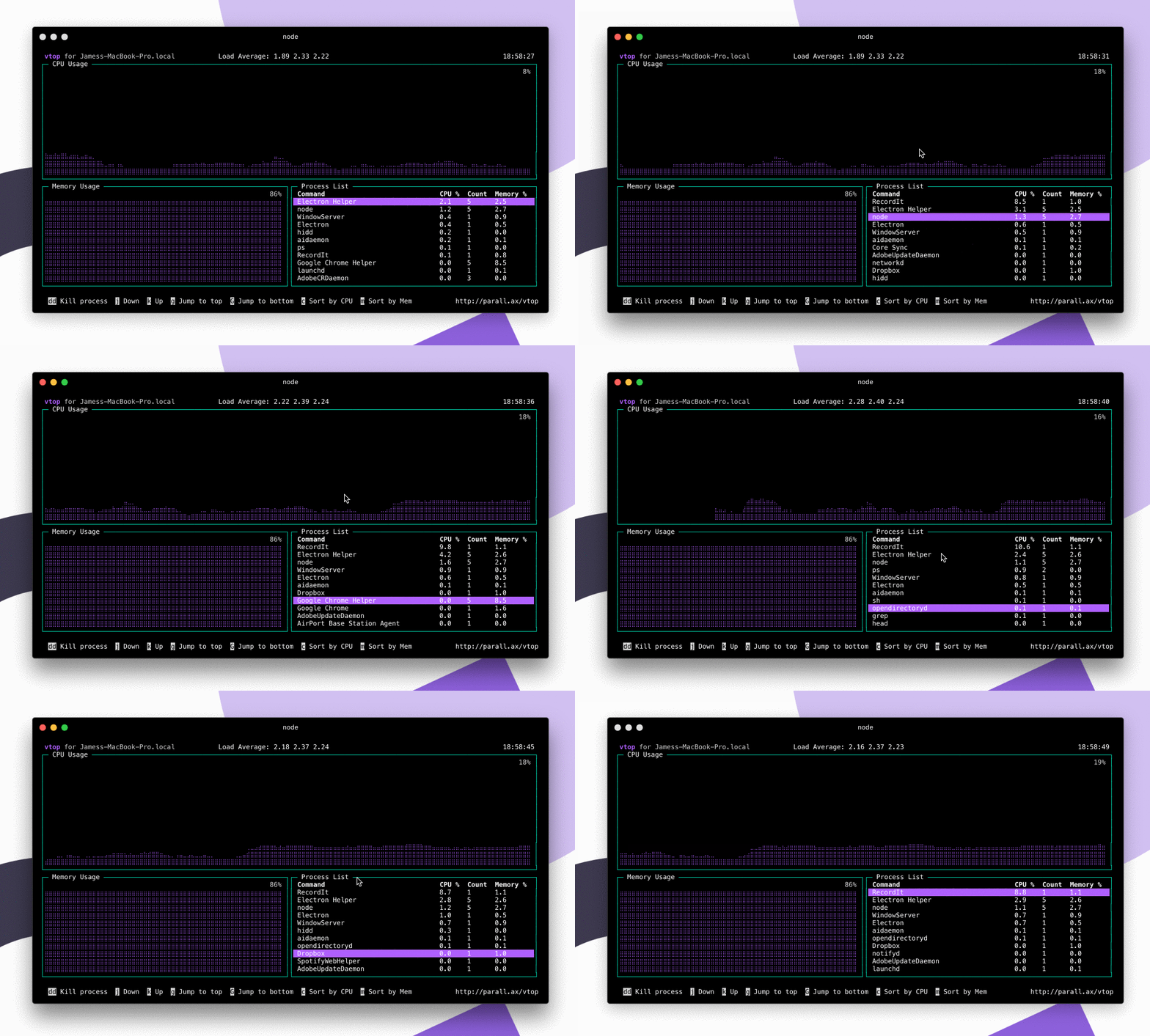
Introducing vtop — A Terminal Activity Monitor in Node.js

Command-line tools like “top” make it difficult to see CPU usage across multi-process applications (like Apache and Chrome), spikes over time, and memory usage.
That’s why we created vtop.
Vtop is a free and open source activity monitor for the command line. It’s written in node.js and can be easily extended. Why not check out the source code?

How to install

If you haven’t already got Node.js, then download that first, then run:
sudo npm install -g vtop

Running

This is pretty simple too.
vtop

Keyboard shortcuts

  • Press ‘u’ to update to the latest version of vtop.
  • Arrow up or k to move up the process list.
  • Arrow down or j to move down.
  • g to go to the top of the process list.
  • G to move to the end of the list.
  • dd to kill all the processes in that group

FAQs

How does it work?

It uses Unicode braille characters to draw CPU and Memory charts, helping you visualise spikes. We also group processes with the same name together.

I think the CPU % is coming out wrong.

We calculate the CPU percentage as a total of your overall system power. 100% is all cores and HyperThreads maxed out. This is different to how Apple Activity monitor works.

Can I change the color scheme?

Sure, just do:
vtop --theme wizard
This loads the theme file in themes/ with the same name. Make your own and send me a Pull Request
You could add this to your aliases if you’d like to use it always.
alias vtop="vtop --theme brew"

What about measuring server req/s, log entries, etc etc?

Yeah that’s on the list. Feel free to send a pull request though. Check out the sensors/ folder.

What license is this under?

MIT – do what you like with it.

I have another problem that’s not answered here

Please open a ticket and we’ll take a look for you.

Interested in working at Parallax?

We have a front-end developer position open at the moment

Friday, June 27, 2014

RPM Command: 15 Examples to Install, Uninstall, Upgrade, Query RPM Packages

RPM command is used for installing, uninstalling, upgrading, querying, listing, and checking RPM packages on your Linux system.
RPM stands for Red Hat Package Manager.
With root privilege, you can use the rpm command with appropriate options to manage the RPM software packages.

In this article, let us review 15 practical examples of rpm command.
Let us take an rpm of Mysql Client and run through all our examples.

1. Installing a RPM package Using rpm -ivh

RPM filename has packagename, version, release and architecture name.
For example, In the MySQL-client-3.23.57-1.i386.rpm file:
  • MySQL-client – Package Name
  • 3.23.57 – Version
  • 1 – Release
  • i386 – Architecture
When you install a RPM, it checks whether your system is suitable for the software the RPM package contains, figures out where to install the files located inside the rpm package, installs them on your system, and adds that piece of software into its database of installed RPM packages.
The following rpm command installs Mysql client package.
# rpm -ivh  MySQL-client-3.23.57-1.i386.rpm
Preparing...                ########################################### [100%]
   1:MySQL-client           ########################################### [100%]
rpm command and options
  • -i : install a package
  • -v : verbose
  • -h : print hash marks as the package archive is unpacked.
You can also use dpkg on Debian, pkgadd on Solaris, depot on HP-UX to install packages.

2. Query all the RPM Packages using rpm -qa

You can use rpm command to query all the packages installed in your system.
# rpm -qa
cdrecord-2.01-10.7.el5
bluez-libs-3.7-1.1
setarch-2.0-1.1
.
.
  • -q query operation
  • -a queries all installed packages
To identify whether a particular rpm package is installed on your system, combine rpm and grep command as shown below. Following command checks whether cdrecord package is installed on your system.
# rpm -qa | grep 'cdrecord'

3. Query a Particular RPM Package using rpm -q

The above example lists all currently installed package. After installation of a package to check the installation, you can query a particular package and verify as shown below.
# rpm -q MySQL-client
MySQL-client-3.23.57-1

# rpm -q MySQL
package MySQL is not installed
Note: To query a package, you should specify the exact package name. If the package name is incorrect, then rpm command will report that the package is not installed.

4. Query RPM Packages in a various format using rpm –queryformat

Rpm command provides an option –queryformat, which allows you to give the header tag names, to list the packages. Enclose the header tag with in {}.
# rpm -qa --queryformat '%{name-%{version}-%{release} %{size}\n'
cdrecord-2.01-10.7 12324
bluez-libs-3.7-1.1 5634
setarch-2.0-1.1 235563
.
.

#

5. Which RPM package does a file belong to? – Use rpm -qf

Let us say, you have list of files and you would want to know which package owns all these files. rpm command has options to achieve this.
The following example shows that /usr/bin/mysqlaccess file is part of the MySQL-client-3.23.57-1 rpm.
# rpm -qf /usr/bin/mysqlaccess
MySQL-client-3.23.57-1
  • -f : file name

6. Locate documentation of a package that owns file using rpm -qdf

Use the following to know the list of documentations, for a package that owns a file. The following command, gives the location of all the manual pages related to mysql package.
# rpm -qdf /usr/bin/mysqlaccess
/usr/share/man/man1/mysql.1.gz
/usr/share/man/man1/mysqlaccess.1.gz
/usr/share/man/man1/mysqladmin.1.gz
/usr/share/man/man1/mysqldump.1.gz
/usr/share/man/man1/mysqlshow.1.gz
  • -d : refers documentation.

7. Information about Installed RPM Package using rpm -qi

rpm command provides a lot of information about an installed pacakge using rpm -qi as shown below:
# rpm -qi MySQL-client
Name        : MySQL-client                 Relocations: (not relocatable)
Version     : 3.23.57                           Vendor: MySQL AB
Release     : 1                             Build Date: Mon 09 Jun 2003 11:08:28 PM CEST
Install Date: Mon 06 Feb 2010 03:19:16 AM PST               Build Host: build.mysql.com
Group       : Applications/Databases        Source RPM: MySQL-3.23.57-1.src.rpm
Size        : 5305109                          License: GPL / LGPL
Signature   : (none)
Packager    : Lenz Grimmer
URL         : http://www.mysql.com/
Summary     : MySQL - Client
Description : This package contains the standard MySQL clients.
If you have an RPM file that you would like to install, but want to know more information about it before installing, you can do the following:
# rpm -qip MySQL-client-3.23.57-1.i386.rpm
Name        : MySQL-client                 Relocations: (not relocatable)
Version     : 3.23.57                           Vendor: MySQL AB
Release     : 1                             Build Date: Mon 09 Jun 2003 11:08:28 PM CEST
Install Date: (not installed)               Build Host: build.mysql.com
Group       : Applications/Databases        Source RPM: MySQL-3.23.57-1.src.rpm
Size        : 5305109                          License: GPL / LGPL
Signature   : (none)
Packager    : Lenz Grimmer
URL         : http://www.mysql.com/
Summary     : MySQL - Client
Description : This package contains the standard MySQL clients.
  • -i : view information about an rpm
  • -p : specify a package name

8. List all the Files in a Package using rpm -qlp

To list the content of a RPM package, use the following command, which will list out the files without extracting into the local directory folder.
$ rpm -qlp ovpc-2.1.10.rpm
/usr/bin/mysqlaccess
/usr/bin/mysqldata
/usr/bin/mysqlperm
.
.
/usr/bin/mysqladmin
  • q : query the rpm file
  • l : list the files in the package
  • p : specify the package name
You can also extract files from RPM package using rpm2cpio as we discussed earlier.

9. List the Dependency Packages using rpm -qRP

To view the list of packages on which this package depends,
# rpm -qRp MySQL-client-3.23.57-1.i386.rpm
/bin/sh
/usr/bin/perl

10. Find out the state of files in a package using rpm -qsp

The following command is to find state (installed, replaced or normal) for all the files in a RPM package.
# rpm -qsp MySQL-client-3.23.57-1.i386.rpm
normal        /usr/bin/msql2mysql
normal        /usr/bin/mysql
normal        /usr/bin/mysql_find_rows
normal        /usr/bin/mysqlaccess
normal        /usr/bin/mysqladmin
normal        /usr/bin/mysqlbinlog
normal        /usr/bin/mysqlcheck
normal        /usr/bin/mysqldump
normal        /usr/bin/mysqlimport
normal        /usr/bin/mysqlshow
normal        /usr/share/man/man1/mysql.1.gz
normal        /usr/share/man/man1/mysqlaccess.1.gz
normal        /usr/share/man/man1/mysqladmin.1.gz
normal        /usr/share/man/man1/mysqldump.1.gz
normal        /usr/share/man/man1/mysqlshow.1.gz

11. Verify a Particular RPM Package using rpm -Vp

Verifying a package compares information about the installed files in the package with information about the files taken from the package metadata stored in the rpm database. In the following command, -V is for verification and -p option is used to specify a package name to verify.
# rpm -Vp MySQL-client-3.23.57-1.i386.rpm
S.5....T c        /usr/bin/msql2mysql
S.5....T c        /usr/bin/mysql
S.5....T c        /usr/bin/mysql_find_rows
S.5....T c        /usr/bin/mysqlaccess
The character in the above output denotes the following:
  • S file Size differs
  • M Mode differs (includes permissions and file type)
  • 5 MD5 sum differs
  • D Device major/minor number mismatch
  • L readlink(2) path mismatch
  • U User ownership differs
  • G Group ownership differs
  • T mTime differs

12. Verify a Package Owning file using rpm -Vf

The following command verify the package which owns the given filename.
# rpm -Vf /usr/bin/mysqlaccess
S.5....T c /usr/bin/mysql
#

13. Upgrading a RPM Package using rpm -Uvh

Upgrading a package is similar to installing one, but RPM automatically un-installs existing versions of the package before installing the new one. If an old version of the package is not found, the upgrade option will still install it.
# rpm -Uvh MySQL-client-3.23.57-1.i386.rpm
Preparing...    ########################################### [100%]
1:MySQL-client          ###########################################

14. Uninstalling a RPM Package using rpm -e

To remove an installed rpm package using -e as shown below. After uninstallation, you can query using rpm -qa and verify the uninstallation.
# rpm -ev MySQL-client

15. Verifying all the RPM Packages using rpm -Va

The following command verifies all the installed packages.
# rpm -Va
S.5....T c /etc/issue
S.5....T c /etc/issue.net
S.5....T c /var/service/imap/ssl/seed
S.5....T c /home/httpd/html/horde/ingo/config/backends.php
.
.
S.5....T c /home/httpd/html/horde/ingo/config/prefs.php
S.5....T c /etc/printcap
Link:http://www.thegeekstuff.com/2010/07/rpm-command-examples/